Ten years ago I wrote up how I build a RaspberryPi kiosk. I still love screens on my walls that just show stuff. Tonight I set up a new one, and almost every step from 2016 has changed.
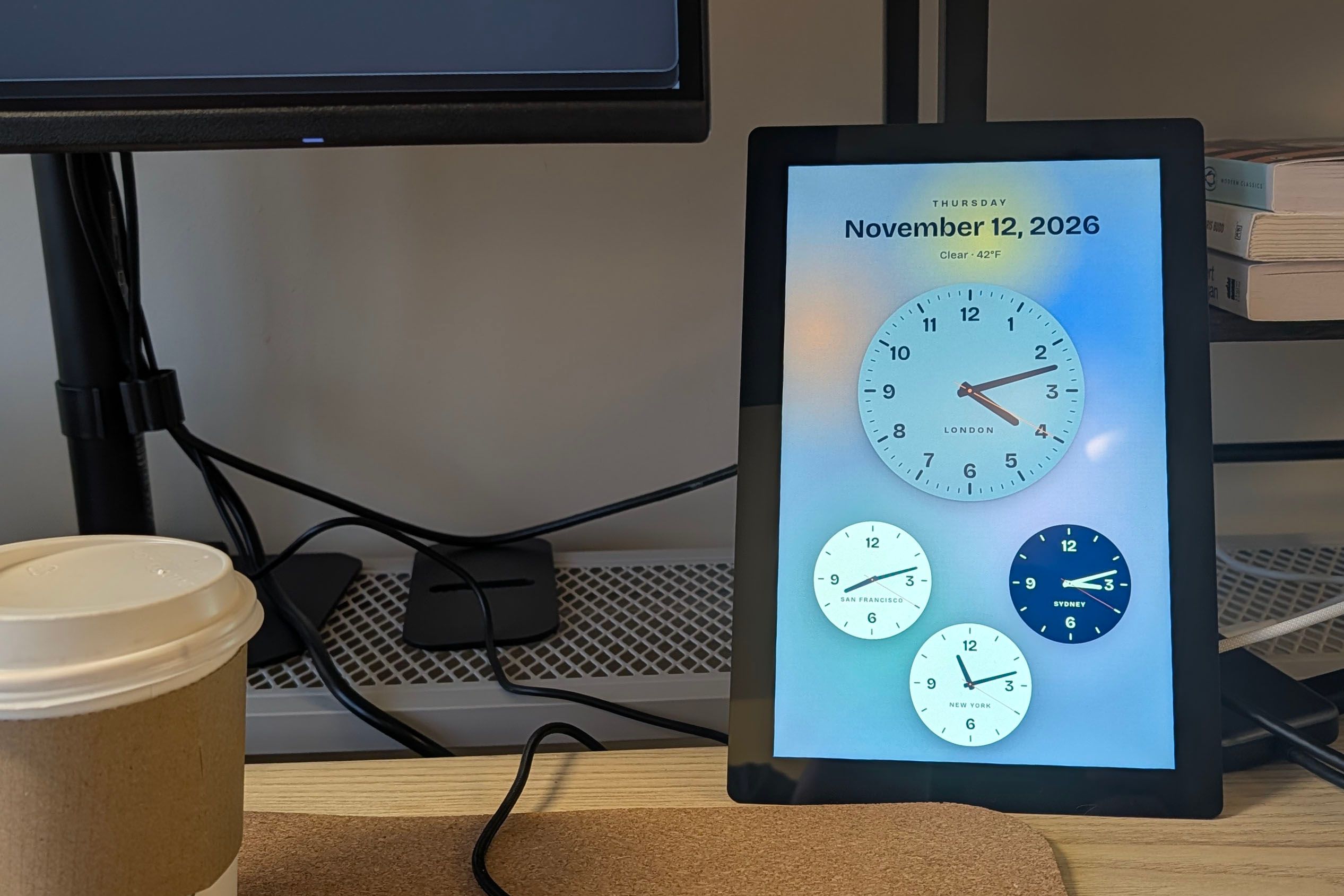
This one is called window, and it shows cambridge.natwelch.com, an analog world clock I made. It has a big face for London, smaller ones for San Francisco, New York, and Sydney, and the date and weather across the top.
The hardware:
- A Raspberry Pi 5
- A 10" Raspberry Pi Touch Display 2
- A Raspberry Pi 5 power supply
- A microSD card
In 2016 I told you to buy the cheapest HDMI monitor on Amazon. I have upgraded this build to use the official Touch Display 2. It plugs straight into the Pi, takes its power from the Pi's GPIO pins, and is a decent size.
Install the OS
Raspberry Pi Imager now does what took half of the old post. Pick Raspberry Pi OS (64-bit), then in its customization settings set a hostname, a user, your WiFi, and paste in your SSH public key. There's no default pi user to delete anymore, and no nmap scan to find the box. The Pi announces itself over mDNS, so once it boots:
$ ssh nat@window.local
Plug in the screen
The ribbon goes in the Pi 5's CAM/DISP 1 port. The power lead goes red to pin 2 (5V) and black to pin 6 (ground).
I put the ribbon in upside down. The screen stayed dark, and the only clue was one line in dmesg:
reg-fixed-voltage 100000002.display_reg: probe with driver reg-fixed-voltage failed with error -121
Error -121 is EREMOTEIO. The Pi asked the display's power regulator a question over I2C and nothing answered. I flipped the cable, and the firmware found the panel by itself and loaded the right overlay. I didn't need to touch config.txt at all.
Wayland changed everything else
The 2016 version used X, xset to stop the screen blanking, unclutter to hide the mouse, matchbox as a window manager, and Midori as the browser. Raspberry Pi OS now runs Wayland with labwc as the compositor, so none of those tools apply. You basically get everything from the jump.
The trick from last time still works, though. LightDM logs in automatically and starts a session, and you can give it your own session. The default desktop session runs labwc -m, which merges in the system config and starts the taskbar and desktop behind your browser. I wanted a session with nothing in it but the browser, so I run labwc with its own config directory.
/usr/share/wayland-sessions/kiosk.desktop:
[Desktop Entry]
Name=Kiosk
Exec=/home/nat/window/kiosk-session
Type=Application
kiosk-session:
#!/bin/sh

export WLR_DRM_FORCE_LIBLIFTOFF=1
exec /usr/bin/labwc -C /home/nat/window/labwc
The WLR_DRM_FORCE_LIBLIFTOFF line is copied from Raspberry Pi's own labwc launcher, which this session skips.
labwc runs the autostart file in that directory when it starts:
/usr/bin/lwrespawn /usr/bin/chromium --kiosk --incognito --noerrdialogs --no-first-run --password-store=basic https://cambridge.natwelch.com &
lwrespawn comes with Raspberry Pi OS and restarts Chromium if it ever exits. --incognito is there because a kiosk gets its power yanked, and a normal Chromium profile then asks if you want to restore your pages. Incognito has nothing to restore. In 2016 Midori reloaded the page after 15 minutes of inactivity. Now the clock page reloads itself every night at 4am, so the browser doesn't have to.
Hiding the cursor takes a window rule in labwc's rc.xml in the same directory:
<?xml version="1.0"?>
<labwc_config>
  <touch mouseEmulation="no" />
  <windowRules>
    <windowRule identifier="chromium*">
      <action name="WarpCursor" to="output" x="-1" y="-1" />
      <action name="HideCursor" />
    </windowRule>
  </windowRules>
</labwc_config>
When the Chromium window opens, labwc moves the cursor to the corner and hides it. Raspberry Pi's default config turns touches into mouse events, which bring the cursor back, so this turns that off and lets Chromium handle touch directly.
Last, point LightDM at the new session:
$ sudo sed -i 's/^autologin-session=.*/autologin-session=kiosk/' /etc/lightdm/lightdm.conf
A drop-in file in /etc/lightdm/lightdm.conf.d/ won't work, because LightDM reads lightdm.conf last and Raspberry Pi OS sets autologin-session there. If you ever use raspi-config's boot options, it will put the setting back.
You don't need to turn off screen blanking either. Raspberry Pi OS blanks the screen by running swayidle from the desktop session's autostart, and this session never runs it.
Ta da! Email me if you find bugs.
/Nat
